Why file-name search isn't enough
Most file browsers and many reading apps search titles, authors and file names. That works when you remember what a book is called, but not when you remember what was in it: a character, a recipe, a quotation, a technical term. Searching inside a single open book doesn't help either when you have hundreds of them.
GrepTag opens each EPUB and TXT file in your library, reads its text and tells you which books contain your keywords, in one pass across the whole collection.
Step by step
- Import your books. Add EPUB and TXT files from the Files app, iCloud Drive or another location you can open on the device. On the Mac you can add a folder.
- Open the Library and switch the search mode. Tap the search mode menu next to the search field and choose Content (inside files) instead of Filename.
- Type your keywords. One keyword, or several separated by commas:
lighthouse, harbour. A book is listed if it contains any of them. - Press Search. GrepTag scans every book and lists the ones that match. The time it takes depends on how many books you have and where they're stored.
- Open a result. Inside the book, use find to jump to each occurrence, with a short snippet for every hit.
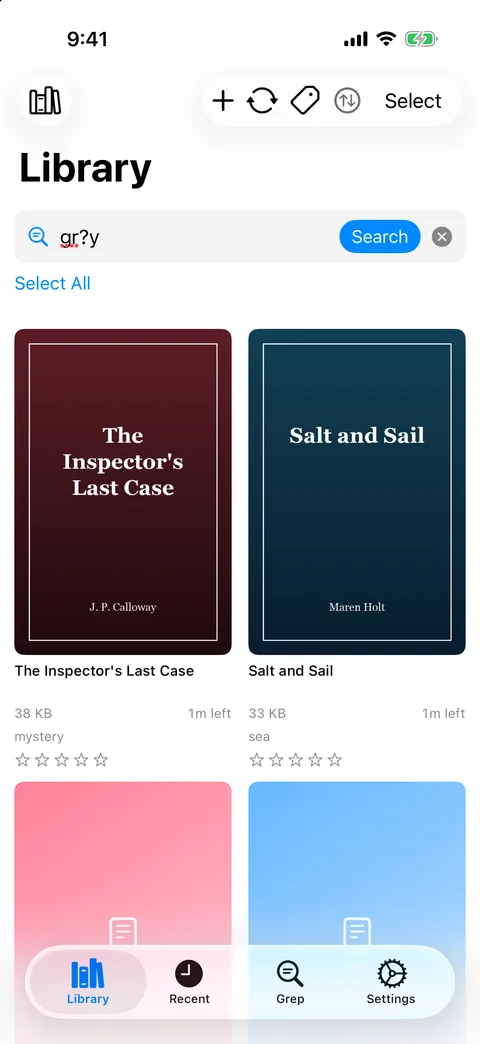
Content search lists every book whose text contains a keyword.
Tips for better results
- Case and accents don't matter.
brontefinds “Brontë”, andPARISfinds “Paris”. - Matching is by substring.
artalso matches “party” and “start”. Longer, more specific keywords give cleaner results. - Use wildcards for spelling variants.
gr?yfinds grey and gray;organi?efinds organise and organize;colo*rfinds color and colour.*covers up to ten characters and never crosses a line break. - Chinese, Japanese and Korean text works. GrepTag detects legacy encodings such as GB18030, Big5 and Shift-JIS in TXT files, so older downloads search correctly. There's no word segmentation: type the exact characters you're looking for.
- Comma means “any”. To require several words together, or to exclude one, save a profile instead.
When to use a profile instead
A Library search is a quick, one-off question. If you'll ask the same thing again, or you need AND and NOT, create a grep profile on the Grep tab: add rules such as detective OR inspector NOT cookbook, give it a tag, and run it. Profiles remember the question, so you can re-run it with Grep New whenever you add books. See how to auto-tag your library.
Limits worth knowing
- Only EPUB and TXT files are searched. PDF, comic archives, MOBI/AZW and Word files aren't supported.
- There's no regular-expression, phrase-proximity or whole-word mode.
- Library results list books, not lines. Open the book to see each match in context.
- There's no prebuilt index. Each search reads the files again, so it always reflects their current content, but big libraries on a network drive take longer.